Okay, so this week’s blog post I will be covering a tip to help improve your sleep. We all know that the blue LED light from screens tricks our brains into keeping us awake. Many phones nowadays have some sort of screen dimmer built in or apps can be bought that achieve the same purpose. Today, I will show you a free and easy way to get even better results than anything else out there.
I only know how to do this because I own an iphone, I’m sure there is a way to do it on Android. You might have to consult Google on that one.
Step 1. Go to your Settings

Step 2. Go to the ‘Accessibility Tab’
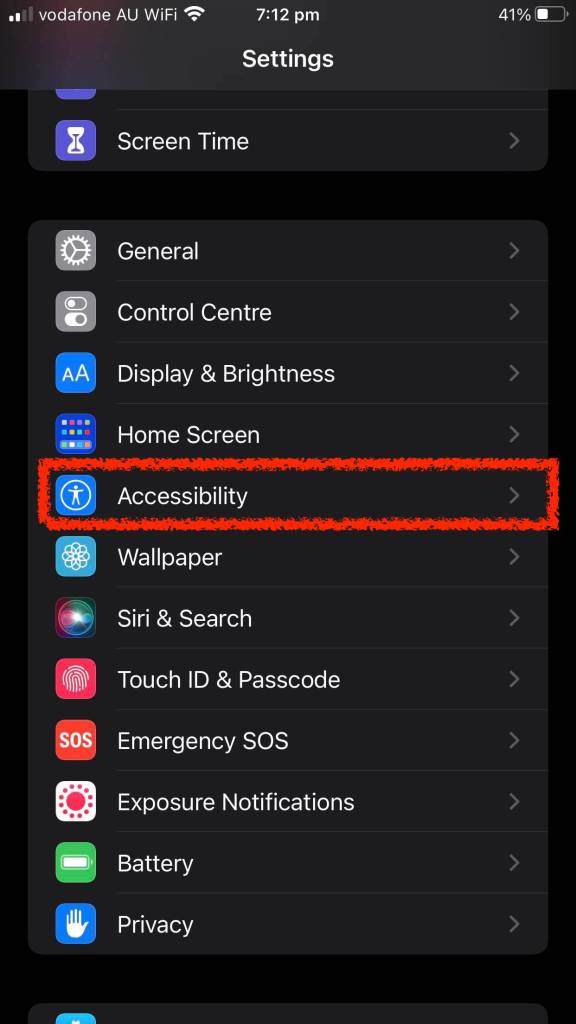
Step 3. Click on the “Display & Text Size” Tab

Step 4. Scroll down and click on the “Colour Filters” Tab
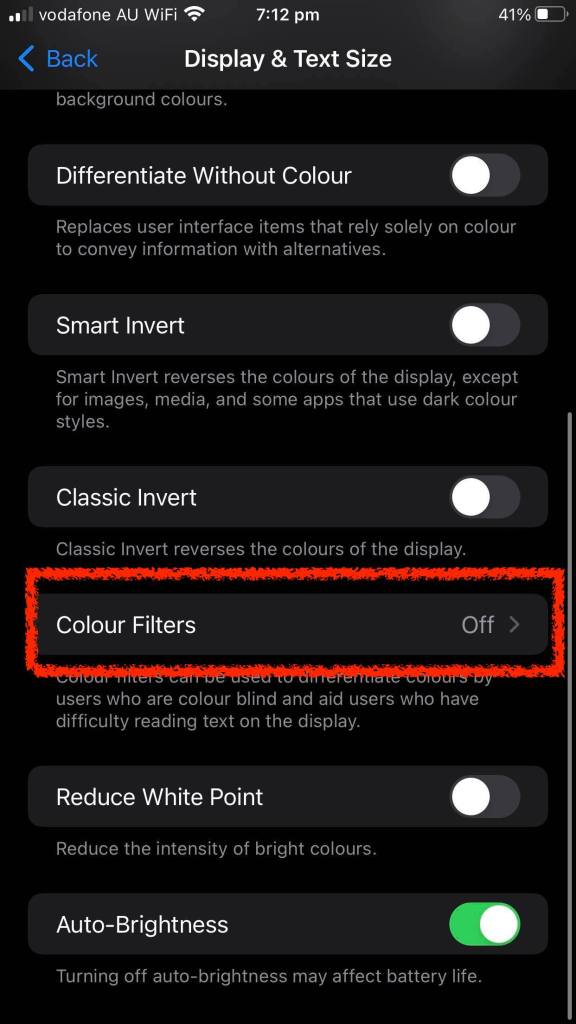
Step 5. Turn on “Colour Filters”
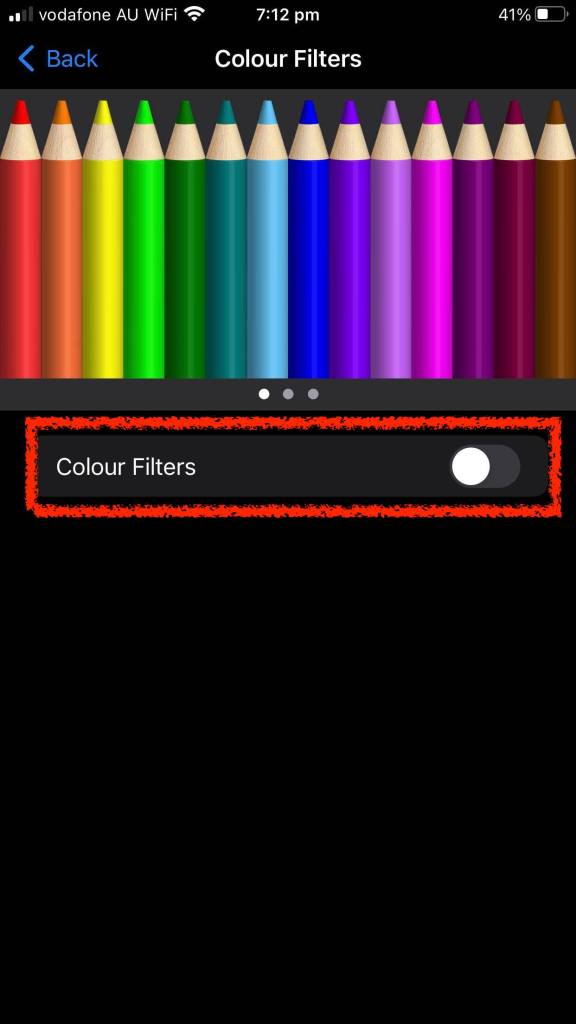
Step 6. Increase “Intensity” to the maximum (FYI your screen should turn a dark brown/red, mine doesn’t change, the reason why will become apparent in the next steps)


Hold up!!! We now know how to erase most of the blue LED light from our screen, but naviagting the Setting’s menus to turn that on and off is hard. I hear you, so let’s automate the process. The previous steps changed the colour of the screen, the following steps automate the accessibility features on your iphone. So that when you triple press the home screen very fast, it will toggle the dark brown/red screen filter
Step 7. Go back to the “Accessibility” Tab and scroll down and select “Accessibility Shortcut”
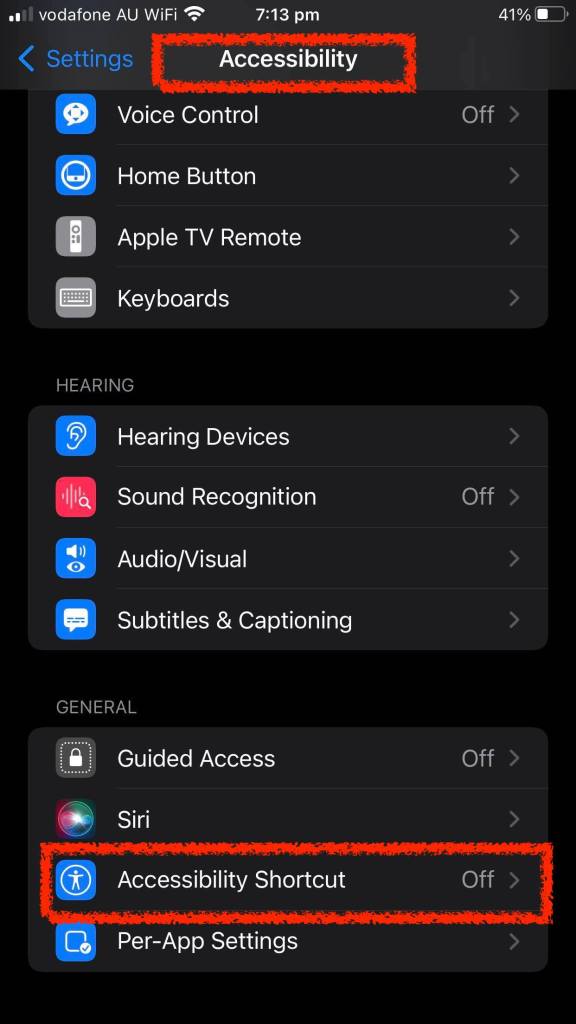
Step 9. Tick the “Colour Filters” Option
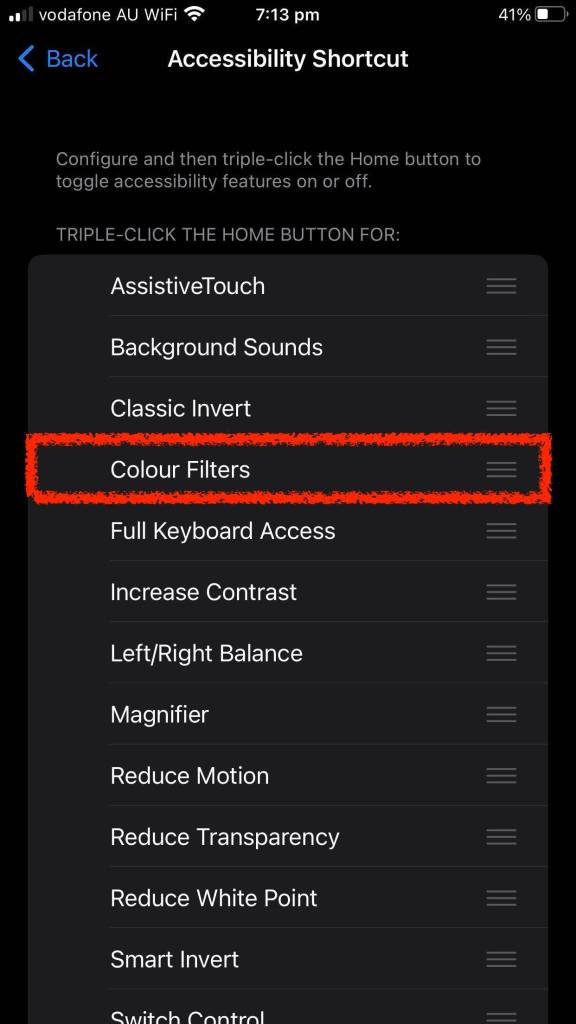
Finish… So now when you triple press your home button, your screen will go from normal to the dark brown/red. And if you triple press your home button again, it will revert back to your normal screen colour.
Hope this helps you sleep.
Thanks to my Hedites for bankrolling this endeavour
 Jordan Hedi Productions